
Android help
Rush Royale on Low-End Android: Performance and Stability Fixes
Key takeaways
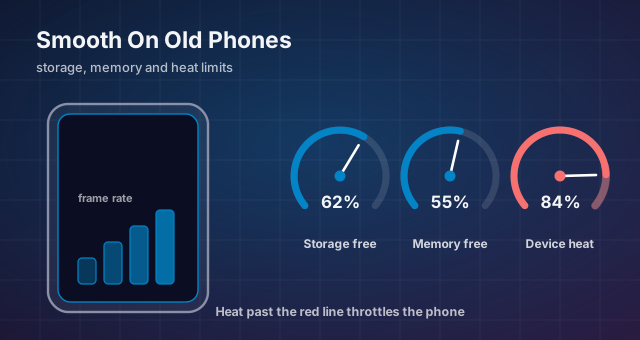
- Free storage and RAM headroom fix more crashes than any in-game setting does.
- Thermal throttling looks exactly like a bad connection — check the device temperature first.
- An unofficial lightweight build is an account-theft risk; the official stores are the only safe source.
Rush Royale is real-time, so on a low-end Android phone the difference between a win and a loss is often the device, not the deck: dropped frames during a merge, a disconnect in a league match, or throttling mid-boss all cost rating. This guide covers the safe, reversible fixes in the order worth trying.
Check the baseline first
Before changing anything, confirm the fundamentals: a reasonably current Android version, enough free storage for the install plus its downloaded assets, and enough free RAM to stay resident while the system runs its own services. If any of those is below par, no in-game setting will save you.
Update the game and the OS first. Install the title through Google Play so you get the build packaged for your device, and take any pending system update, since GPU driver and memory management fixes arrive that way. Confirm you are on build [current version] in the store listing.
Then run a controlled test: restart, close everything else, and play one co-op match. Smooth under those conditions and your problem is background load or heat, which the fixes below address. Still stuttering on a clean restart and the device is probably below the practical floor.
Storage and RAM: the two biggest wins
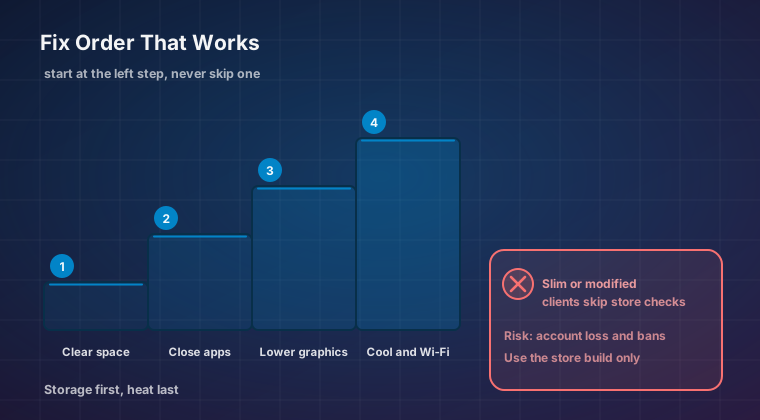
Storage pressure slows Android in ways that are easy to miss: when free space runs low, the system spends time reclaiming blocks, caches fail to write, and asset downloads stall. Keep a comfortable margin rather than running near full, and offload photos and videos first, since they are almost always the bulk.
Clear the game's cache from Android settings, not with a third-party cleaner. It is safe and reversible - the game rebuilds what it needs, and your account data lives on the publisher's servers. Do not clear app data or storage unless you are deliberately resetting, as that removes local settings.
- Restart before a ranked session; long uptime leaves stale services running.
- Force-stop background apps that stream, sync, or scan continuously.
- Keep a healthy margin of free storage so downloads never stall.
- Avoid "memory booster" apps - they consume RAM themselves and add background work.
Graphics, framerate, and heat
Real-time play cares about consistency more than visual quality. If graphics or effects options exist, lower them first: reduced effects cut GPU load, the usual cause of stutter on modest hardware. Frame consistency matters far more than resolution for timed decisions.
Turn off battery saver and any manufacturer performance limiter while playing. These cap CPU and GPU clocks to extend battery life, producing exactly the mid-match slowdown players blame on the network. If your device has a performance or game mode, enable it for the session.
Heat is the other half of this: a warm phone throttles, which appears as gradually worsening framerate over ten or fifteen minutes rather than a sudden drop. Play unplugged, remove the case, avoid sun, and let a hot device cool instead of pushing through a throttled match.
Network stability in PvP
A stable connection matters more than a fast one. Real-time matches need consistent latency with low packet loss, and mobile data can be surprisingly good at that while congested public Wi-Fi is surprisingly bad. Test both rather than assuming Wi-Fi wins.
On Wi-Fi, prefer the less crowded 5 GHz band, stay close to the router, and avoid peak evening congestion on shared connections. On mobile data, confirm a stable signal before queueing, since moving between cells mid-match is a common cause of sudden disconnects.
Watch for background sync too: a cloud backup or app update starting mid-match can spike latency and cost a league game. Pause updates before a ranked block, and if you disconnect at the same time every day, suspect your own network schedule first.
Symptom-to-fix table
Work down this table in order: each row lists the most likely cause and the safest fix, so you avoid irreversible steps until they are genuinely needed.
| Symptom | Most likely cause | Safe fix |
|---|---|---|
| Stutter during dense waves | GPU load too high, or thermal throttling | Lower graphics/effects settings, remove the case, let the device cool |
| Performance degrades after 10 to 15 minutes | Heat-induced throttling | Stop charging while playing, take breaks, avoid direct sun |
| Long load screens or stalled downloads | Low free storage, or a congested network | Free storage space, switch Wi-Fi band or use mobile data |
| Random disconnects mid-match | Unstable signal or background sync | Pause updates and backups, move to a stronger signal, test both network types |
| Lag only in the evening | Shared or congested connection | Schedule ranked play off-peak, or use mobile data for ranked |
| Crashes on launch | Corrupt local cache or outdated build | Update via Google Play, clear the app cache, restart the device |
| Persistent problems after all of the above | Damaged local install or failing storage | Reinstall from Google Play as a last step, after confirming your account is linked |
Never install unofficial lightweight builds
Search results and forum posts sometimes promote lightweight or "compressed" versions of popular games, framed as a way to save storage. Do not install them. An unofficial build is an unsigned package from an unknown source and carries both account and device risk: such packages can contain malware, adware, or credential-stealing code you cannot verify.
The account side is just as serious. An unofficial build can breach the game's terms and get your progress banned, and any login you enter into it goes to whoever packaged it. Saving a few hundred megabytes is never worth losing an account you spent seasons building.
If you already installed something unofficial, uninstall it, change your password, enable two-factor authentication, and scan the device. Then reinstall from Google Play.
Final verdict
Start with the boring fixes: update through Google Play, restart, free storage, clear the cache, lower graphics settings, disable battery saver, and stabilise the connection. Those steps resolve most performance complaints on older hardware, and none risk your account.
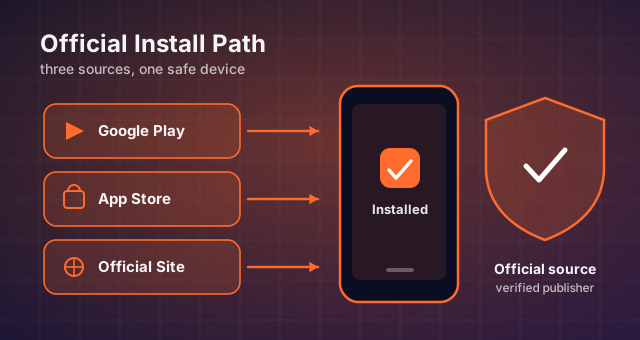
Treat heat and network as the two hidden variables, since both produce symptoms that look like the game's fault. And keep the install clean: only run the official build from Google Play, the App Store, or the game's own site, because every unofficial shortcut trades a real account for an imaginary benefit.
Keep reading
Rush Royale APK: Official Version, Requirements and a Safe Install Guide
What the Rush Royale APK actually contains, current Android requirements, how to update cleanly and how to spot a repackaged installer before it costs you your account.
Rush Royale Not Working? Fix Install Failures, Crashes and Connection Errors
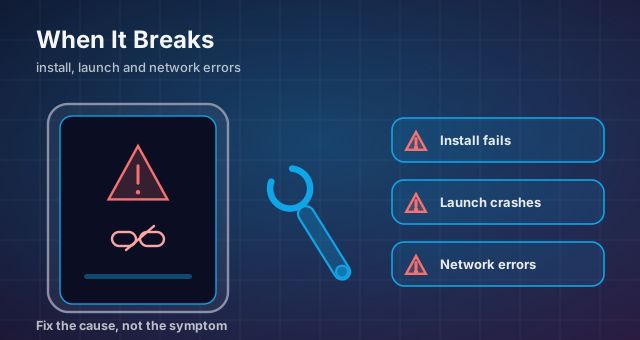
Storage checks, OS requirements, stuck updates, crash loops and safe reinstall steps for Rush Royale — in the order that keeps your account intact.
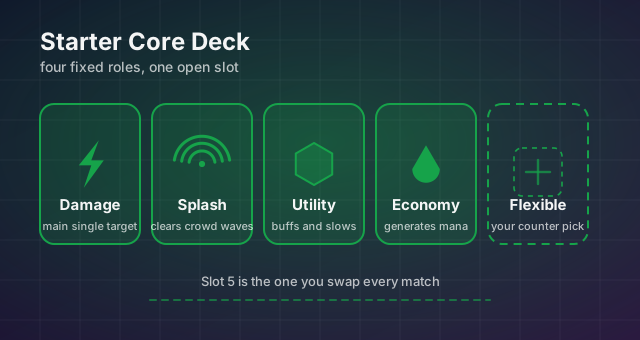
Best Rush Royale Units for Beginners: A Starter Core That Scales
How to choose the five cards worth levelling when your collection is thin: slot roles, screening criteria and why copying a ladder deck early backfires.